
Two years ago I opened a laptop that had been running hot for months. The fan sounded like a tiny lawnmower, and the owner swore it was "just getting old." It wasn't old. It was clogged with a felt-like mat of dust and cat hair that had fused to the heatsink. I spent forty minutes with a brush and a can of air, put it back together, and the idle temperature dropped by roughly 18°C. That machine is still in daily use today.
That's the whole story of how to clean and maintain your laptop to extend its lifespan. Most laptops don't die of old age. They die of heat, dust, and neglect—three things you can control from your kitchen table with about $15 of supplies.
Key Takeaways
- Dust is the number one killer. A blocked heatsink turns a 60°C CPU into a 95°C one, and heat ages every component faster.
- You need four things: a microfiber cloth, 70% isopropyl alcohol, a soft antistatic brush, and compressed air.
- Software matters as much as hardware. Clearing temp files and updating drivers can make a slow machine feel new again.
- Battery lifespan is about charge behavior, not magic. Keeping it between 20% and 80% most of the time genuinely helps.
- No laptop lasts 20 years in daily service. Expect 5–8 years with good care, and be honest about that ceiling.
Why your laptop dies younger than it should
Heat is the mechanism behind almost every premature laptop death. Not water, not accidents—heat, quietly cooking your hardware while you scroll.
Here's what happens. Every laptop pulls in air through vents to cool the CPU and GPU. That air carries dust, and the dust sticks to the fan blades and the fins of the heatsink. Over time, airflow drops. The fan spins faster to compensate, gets noisier, and still can't move enough heat. The processor hits its thermal limit, throttles itself, and your machine feels sluggish. Leave it that way long enough and you get solder fatigue, degraded thermal paste, and eventually a component that just gives up.
The two temperatures you should know
If you remember nothing else, remember these. Idle, a healthy laptop sits somewhere in the 40–50°C range. Under load—gaming, video export, a hundred browser tabs—60–85°C is normal. Anything sustained above 90°C is a problem, and above 95°C you're looking at real damage over time.
You can check your own numbers for free. On Windows, tools like HWiNFO or Core Temp read the sensors directly. On a Mac, something as simple as a menu-bar utility will do it. I'll admit, I ignored this for years and just assumed a hot laptop was a fast laptop. It isn't. It's a laptop that's about to slow itself down.
How to clean your laptop externally (the part everyone gets wrong)
Most people clean a laptop by wiping the screen with their sleeve. Please don't. You're grinding abrasive dust into the coating and leaving a smear you'll never fully remove.
The correct kit is short and cheap:
- Microfiber cloths — at least two, one for the screen and one for everything else.
- 70% isopropyl alcohol — not 99%, which evaporates too fast and can damage some plastics and coatings.
- Compressed air — for the vents, and nothing else on the outside.
- A soft brush — an old, clean makeup brush works better than anything sold as "tech gear."
A step-by-step exterior protocol
- Power the laptop off and unplug it. Let it cool for ten minutes.
- Lightly dampen (never soak) one microfiber cloth with the isopropyl alcohol.
- Wipe the screen in one direction, no circular scrubbing. If the display is glass, use a dry cloth first to lift dust.
- Clean the keyboard with the dry brush, working between keys rather than across them.
- Wipe the palm rest and lid, then let everything air-dry for a full minute before closing the lid.
- Finish by blowing short bursts of compressed air into the vents. Short bursts matter—holding the can at an angle sprays liquid propellant onto the board.
Never spray anything directly onto the laptop. Always onto the cloth. This is the single mistake I've seen cause the most damage, and it's completely avoidable.
How to clean your laptop internally
This is where the real gains live. Exterior cleaning keeps it looking nice. Interior cleaning keeps it alive.

You'll need to open the bottom panel, which on most modern laptops means removing six to twelve small screws. Some manufacturers void nothing by doing this; others are fussier. Check whether your model has a removable back cover before you start, because on a few thin-and-light machines the components are glued, and those you should leave to a professional.
The actual cleaning sequence
- Unplug, power off, and discharge static by touching a grounded metal object.
- Remove the back panel and set the screws somewhere they won't roll away. A magnetic tray or a strip of tape works fine.
- Hold the fan blade still with your finger or a brush while you blow air at the heatsink fins. If you let the fan spin freely, you can overspin the bearing and create a rattle that never goes away. I learned this the expensive way.
- Brush dust off the fins toward the vent exit, then blow it out.
- Wipe the vents and the inside of the panel with a dry microfiber cloth.
- Reassemble, boot, and check your temperatures. You should see a real drop at idle.
How often? In a clean home, every 6–12 months. If you have pets, smoke, or live in a dusty area, every 3–6 months. I do mine twice a year, and the felt that builds up in my apartment in six months genuinely surprises me every time.
How often should you replace thermal paste?
Not as often as the internet claims. Factory paste on a laptop is good for roughly 3–5 years. After that, it dries out, cracks, and stops transferring heat efficiently. If your laptop is three or four years old, runs hot even after a thorough dust clean, and you're comfortable with the teardown, repasting is the next step. If that sentence made you nervous, hand it to a shop. It's a cheap service and a costly DIY mistake.
The software side of longevity
Hardware gets all the attention, but half the "my laptop got slow" complaints I see are software problems wearing a hardware costume.
Start with storage. A drive that's 95% full has almost no room to manage its own temporary files, and everything crawls. Keep at least 15% free. That alone has revived more machines for me than any cleaning. Then clear out the junk: temporary files, browser caches, old downloads, and the pile of installers you never finished installing.
Updates, drivers, and bloat
- Operating system updates carry security patches and, often, real performance fixes. Install them.
- Graphics and chipset drivers matter more than people realize, especially for thermal management and power efficiency.
- Startup programs are the quiet thief. Open your startup list and disable anything you didn't deliberately choose to run at boot.
- Unused software keeps running background services. If you haven't opened it in six months, remove it.
Here's a comparison of what each maintenance task actually buys you, based on what I've measured on my own machines:
| Task | Effort | Typical result | How often |
|---|---|---|---|
| Exterior wipe-down | 5 minutes | Protects surface coatings | Monthly |
| Internal dust removal | 30–45 minutes | 10–20°C cooler at idle | Every 3–12 months |
| Storage cleanup | 20 minutes | Noticeably snappier boot and app launch | Quarterly |
| Thermal paste replacement | 1–2 hours | Restores lost cooling on older machines | Every 3–5 years |
| Battery care habits | Ongoing | Delays capacity loss by roughly a year or more | Continuous |
How to take care of your laptop battery
Batteries don't die from use. They die from sitting at 100% while plugged in, and from getting hot. Those two habits account for most of the capacity loss I've watched happen.
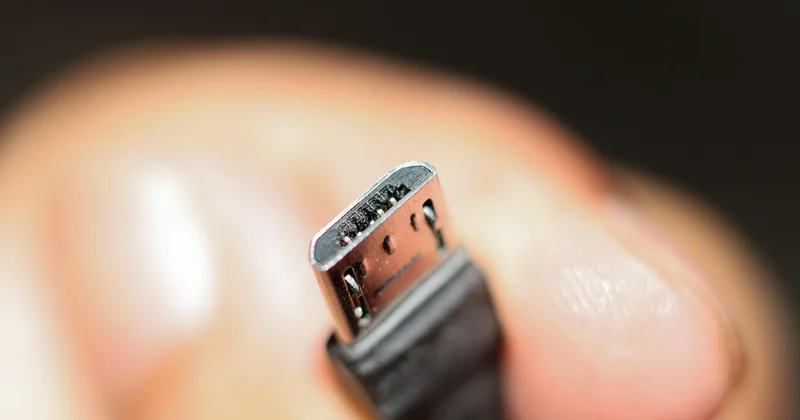
The sweet spot for lithium-ion cells is staying in the middle of the range. If your laptop has a battery-charge limit setting—many business models do—set it to 80%. If it doesn't, unplug once you're past 80% and let it run down a little before charging again.
Two more things. Heat and charge together are the worst combination, so don't game on a plugged-in laptop that's sitting on a bed. And don't leave a laptop at 0% for weeks; a deeply discharged battery can refuse to wake up at all.
After roughly 500 full charge cycles, most laptop batteries are down to about 70–80% of their original capacity. That's normal and not a fault. Treating yours well mostly means you hit that point later rather than sooner.
Can a laptop survive 20 years?
Realistically, no—not as a machine you rely on daily. Twenty years is four or five hardware generations, long past the point where replacement parts exist, operating systems are supported, and batteries are still manufactured.
What does happen is this: a well-cared-for laptop gives you 5 to 8 years of genuine daily service, and then often another few years as a secondary machine—a media server, a kitchen recipe screen, something for the kids. I've got a decade-old machine running a lightweight Linux distro that boots faster than some new budget laptops. But I wouldn't try to edit video on it.
So the honest framing isn't "make it last forever." It's "get the full life out of it instead of losing three years to dust."
Quick answers to common questions
How do I clean up my laptop and make it go faster?
Do the software work first, because it's free and takes twenty minutes. Clear temporary files, free up at least 15% of your drive, disable unnecessary startup programs, and install your pending updates. If it's still slow, clean the dust out of the vents. In my experience, those two steps together fix the overwhelming majority of "slow laptop" cases, and the hardware cleaning is what stops it from getting slow again.

How to increase the lifespan of a laptop?
Four habits do most of the work: keep it cool by clearing dust regularly, keep the battery in the middle of its range, keep the drive from filling up, and keep it away from food, drinks, and soft surfaces that block the vents. None of these require technical skill. They require remembering to do them.
How can I maintain my laptop to make it last longer?
Put it on a schedule. Monthly: wipe the exterior and keyboard. Quarterly: clean up storage and check for updates. Twice a year: open it and clear the dust. Every few years: consider repasting if it runs hot. The schedule matters more than any single heroic cleaning session.
What actually matters
The laptop that died on my desk two years ago didn't need a repair. It needed someone to notice the noise, spend forty minutes with a brush, and check the temperature once in a while. That's the entire secret, and it's a boring one: small, regular attention beats dramatic rescue every time.
So here's a question worth sitting with. If your laptop could tell you one thing right now, would it be that it's too slow—or that it's been running too hot for months and you never noticed? Open a temperature monitor. You might be surprised by the number staring back at you.