You've got a CPU picked out, a GPU you're excited about, and then you hit the motherboard aisle (or, more likely, a filter list with 400 results) and everything goes sideways. B650 or B760? ATX or micro-ATX? Why is one board $90 and another $450 when they look almost identical?
Here's the part nobody tells beginners: the motherboard is not a performance component. It won't make your games run faster. What it does is decide what you can plug in, what you can upgrade later, and whether your machine boots at all with the CPU you bought. Get it wrong and you're not losing 5 fps—you're returning parts.
I've watched friends build their first PCs and make the same mistake three times in a row: they buy the CPU first, then buy a board by price, then discover the socket doesn't match. So let's do this in the order that actually works.
Key takeaways
- The socket decides everything. Pick the CPU, then find boards that accept it—never the reverse.
- For most gamers, a mid-range chipset (B650 on AMD, B760 on Intel) covers everything you need; high-end chipsets mostly add ports and overclocking headroom.
- Check the BIOS revision before you buy an AM5 board for a newer CPU—this is the #1 silent trap.
- 16 GB of RAM is the realistic floor for gaming; 32 GB is comfortable if you keep a browser open.
- Physical size matters more than specs when you're a beginner—measure your case before anything else.
- Two RAM slots is fine. Four slots is not automatically better.
How to choose a gaming motherboard without wasting money
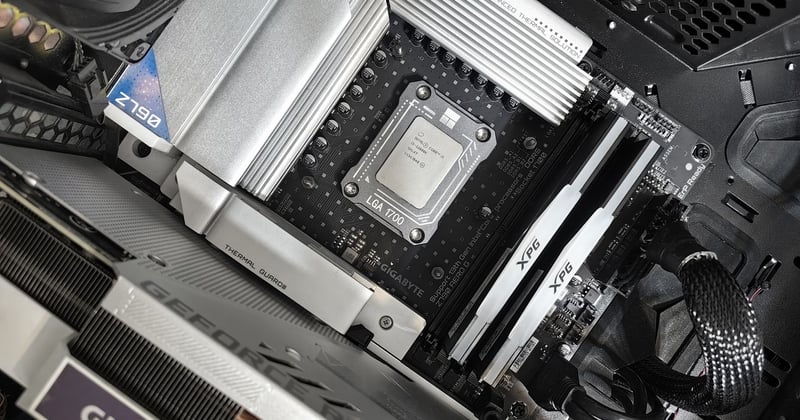
Start from the socket. Not the brand, not the reviews, not the RGB. The socket is the physical connector where your CPU sits, and it's non-negotiable: an AMD Ryzen chip for socket AM5 will not go into an LGA1700 Intel board, no matter how hard you push. It won't even sit flat.
Which brings up a question I get asked constantly.
Can every CPU fit into any motherboard?
No. A CPU only fits a motherboard with a matching socket, and the socket is determined by the CPU's generation and manufacturer. AMD and Intel use different sockets, and each of them changes socket every few generations—AMD's AM5 replaced AM4, and Intel has moved through LGA1200, LGA1700 and newer. A board built for one socket physically cannot accept a chip designed for another. On top of the physical fit, the chipset on the board has to support that specific CPU model, which is why two boards with the same socket can still behave differently with the same chip.
Practically: open the CPU's spec page, note the socket, then filter boards by that socket. Two minutes of work that saves a week of returns.
Chipsets, explained without the marketing fog
The chipset is the board's traffic controller. It determines how many USB ports you get, how many M.2 slots, whether you can overclock, and how the PCIe lanes are split. Manufacturers then slap their own cooling, Wi-Fi modules and RGB on top.
What you actually need to know:
- AMD B650 — the sensible default for gaming builds. Overclocking works, PCIe 5.0 for the GPU is there on most boards, and prices are reasonable.
- AMD X670/X870 — more lanes, more USB, more money. Buy it if you're running multiple fast drives or heavy peripherals. Otherwise skip.
- Intel B760 — the mainstream pick. No CPU overclocking on most models, but for gaming that barely matters.
- Intel Z790 and up — overclocking plus expansion. A niche product for people who know why they want it.
Notice I'm not listing every chipset. There are dozens. Most of them exist to fill price brackets, not to serve you.
The trap that catches almost every beginner: BIOS revisions
This is the one I'd put on a warning sticker. A board can be physically compatible with your CPU and still refuse to boot, because its factory BIOS predates that CPU's release. The board needs a firmware update to recognise the chip—and you can't update firmware without a working CPU. Circular problem.
Some boards have a USB BIOS flashback button that lets you update without a CPU installed. Some don't. If you're buying a board that's been on shelves for a while alongside a recently released CPU, check this before you pay. The retailer's product page usually lists the supported CPU generations and any note about BIOS versions; if it doesn't, the manufacturer's CPU support list does.
My first AM5 build taught me this the expensive way: board arrived, CPU arrived, machine powered on, fans spun, no display, no POST. Two hours of panic before I figured out what was happening.
Size, format, and the measurement you should do first
Motherboards come in three sizes that matter for gamers:

| Format | Typical dimensions | Best for | Trade-offs |
|---|---|---|---|
| ATX | ~305 × 244 mm | Standard mid-tower and full-tower builds | Most expansion slots, usually the widest selection of models |
| Micro-ATX | ~244 × 244 mm | Smaller cases, budget-conscious builds | Fewer PCIe slots, still plenty for one GPU |
| Mini-ITX | ~170 × 170 mm | Compact builds | One GPU slot, two RAM slots, higher price for the same chipset, tighter cable routing |
Here's the thing about mini-ITX: it looks like the "small and simple" option, and it is neither. You pay a premium for the smaller board, you lose expansion, and cable management in a small case is genuinely harder. For a first build, micro-ATX is the sweet spot—cheaper than ATX for equivalent features, and it fits in cases that don't dominate your desk.
Whatever you pick, measure your case's motherboard support list. Not the external dimensions. The list.
What actually matters on the board (and what doesn't)
Manufacturers market features that sound essential and aren't. Let me sort them.
Features worth paying attention to
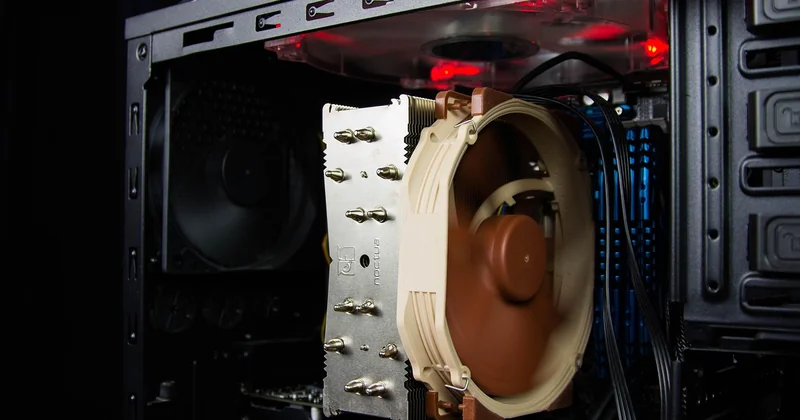
- VRM quality — the power delivery. A weak VRM throttles a high-end CPU under sustained load. For a mid-range gaming chip, almost any modern board is fine; for a flagship CPU, read a teardown.
- M.2 slots — at least two, ideally with heatsinks. Games are enormous and NVMe drives are cheap.
- Rear I/O — count the USB ports you'll actually use. Also confirm whether the board has Wi-Fi built in or needs a card.
- BIOS flashback — as covered above. Worth a small premium.
- Fan headers — three or four is comfortable. Two is tight.
Features that are mostly noise for a beginner
- Elaborate RGB sync ecosystems
- "Gaming" branding on the chipset heatsink
- Extreme overclocking claims—modern CPUs are close to their practical limits out of the box
- Audio chip marketing, unless you're running high-impedance headphones
And a counter-intuitive one: more RAM slots is not better. Four-slot boards with all four populated often run memory slower than two-slot boards with two sticks, because of how the memory controller handles the load. If you're buying 32 GB, two 16 GB sticks on a two-slot board is a cleaner path than four 8 GB sticks.
How much RAM do I need for gaming?
Sixteen gigabytes is the realistic floor. Thirty-two is comfortable, and it's what I'd buy for a new build that needs to last several years—not because games demand it today, but because browsers, Discord, launchers and background apps eat memory alongside the game. Sixty-four is unnecessary for gaming and a waste of money unless you're doing video editing or running virtual machines.
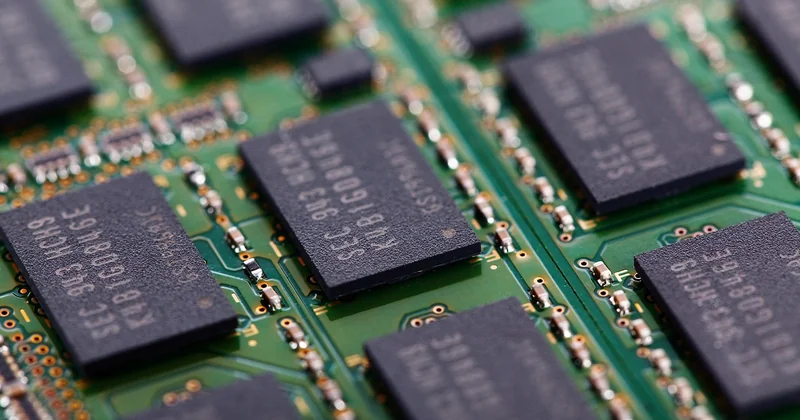
Two more RAM notes for beginners: match the sticks (same kit, not two singles bought separately), and enable the memory profile in BIOS after you build—otherwise your expensive fast RAM runs at a slow default speed. That setting is usually called XMP or EXPO depending on platform.
Budget decisions: where the money goes
Here's my honest position, and I'll defend it: spending more than roughly $180–200 on a gaming motherboard is a poor allocation of a build budget. Every dollar above that buys expansion you probably won't use, before it buys a single frame.
Spend the difference on a better GPU. That's the component that changes your experience. I've seen builds where the board cost more than the graphics card, and every one of them was a mistake.
What's a good motherboard?
A good motherboard is one that fits your CPU's socket, has the BIOS version that supports your chip, fits your case, and offers the ports and M.2 slots you'll realistically fill. That's it. "Good" is a compatibility question far more than a quality question—a $130 micro-ATX board that supports your CPU out of the box is a better motherboard for you than a $400 flagship that needs a firmware update and doesn't fit your case. Once those boxes are ticked, look at VRM quality and rear I/O, and stop there.
Can a motherboard be repaired?
Sometimes, but rarely in a way that makes sense. Physically damaged ports, dead RAM slots or a failed BIOS chip can be fixed by a technician with the right equipment—a cracked CPU socket or a burnt VRM usually means replacement. The economics are brutal: board-level repair costs time, and a new mid-range board often costs less than the labour. If your board fails under warranty, use the warranty. If it's out of warranty and out of production, replace it.
What you can fix yourself: a board that won't boot because of a BIOS setting, a dead CMOS battery (cheap, replaceable, causes weird symptoms like the clock resetting), or loose front-panel wiring. Rule those out before declaring the board dead.
The order of operations
Pick your CPU. Note the socket. Filter boards by socket and by the chipset tier that matches your budget. Confirm the BIOS situation. Measure your case. Check that the rear I/O has the ports you need. Then buy.
That's the whole method, and it takes maybe twenty minutes.
The thing that sticks with me, though, isn't the checklist. It's how much of the anxiety around motherboards comes from marketing rather than engineering. The board is a foundation—it holds things together and it gets out of the way. The parts that make your machine feel fast are the ones you plug into it. Buy a solid foundation, then spend your money where you'll actually notice it.