How to speed up a slow Windows computer (without reinstalling anything)
Three weeks ago a client handed me a laptop and said: "It takes four minutes to reach the desktop." Four minutes. She'd already run two different cleaner tools, both of which had promised a miracle and delivered a slightly emptier hard drive. When I opened Task Manager, the CPU was idling at 4%. Nothing was broken. Something was simply choking, and nobody had bothered to look.
That's the pattern I see over and over. A slow Windows machine is rarely a mystery. It's a bottleneck you haven't located yet, and most advice online tells you to clean things before you've measured anything. So let's do this the other way around: find the actual choke point, then fix it.
Key takeaways
- Measure before you clean. Task Manager and Resource Monitor tell you whether your bottleneck is CPU, RAM, disk or GPU in under two minutes.
- If Windows is installed on a mechanical hard drive, replacing it with an SSD is the single biggest gain you will get. Nothing else comes close.
- Below roughly 10-15% free space, Windows starts struggling to manage its own temporary files and updates.
- Third-party "PC cleaners" are mostly unnecessary. Windows ships with the tools you need.
- Startup apps and background services eat resources silently. Audit them once, then leave them alone.
- Overheating (thermal throttling) can make a perfectly healthy machine feel broken.
Find the bottleneck before you touch anything
Most guides start with disk cleanup. I'd argue that's backwards, and I'll die on that hill. Cleaning without diagnosing is like changing your car's tires because the engine makes a noise.
Here's the two-minute routine I use on every machine I touch.
Open Task Manager and actually watch it
Press Ctrl + Shift + Esc. Click "More details" if you only see a small window. Now look at the four columns: CPU, Memory, Disk, Network.
Leave it open for a full minute while you use the computer normally. The number that stays pegged near 100% is your problem.
- Disk stuck at 100% with low CPU? You're on a mechanical drive, or a failing one.
- Memory at 90%+ with a browser open? You need more RAM, or fewer tabs.
- CPU spiking constantly? Something is running in the background that shouldn't be.
- All three low but everything feels sluggish anyway? Suspect heat or a dying drive.
I once spent an hour uninstalling software from an old desktop before I noticed the disk column was pinned at 100% the entire time. The drive was failing. No amount of cleanup would have fixed that, and I felt genuinely stupid about it.
The Resource Monitor view that tells you more
Type resmon into the Start menu and hit Enter. The Disk tab is where the real story lives: it shows you which specific file is hammering your drive, in kilobytes per second. If you see a Windows Update process writing at 40 MB/s for twenty minutes straight, that's not a broken computer. That's an update installing. Walk away, make coffee, come back.
If instead you see constant small reads from random system files with no obvious culprit, your drive is the bottleneck.
If you're still on a mechanical hard drive, stop reading and buy an SSD
I'll be blunt: if Windows is installed on a spinning 5400 RPM drive, no amount of tweaking will make that machine feel fast. The physics don't allow it. A mechanical drive seeks data at around 100-150 operations per second. A cheap SATA SSD does tens of thousands. That gap is why your laptop takes three minutes to boot and why clicking an icon produces a spinning circle for eleven seconds.
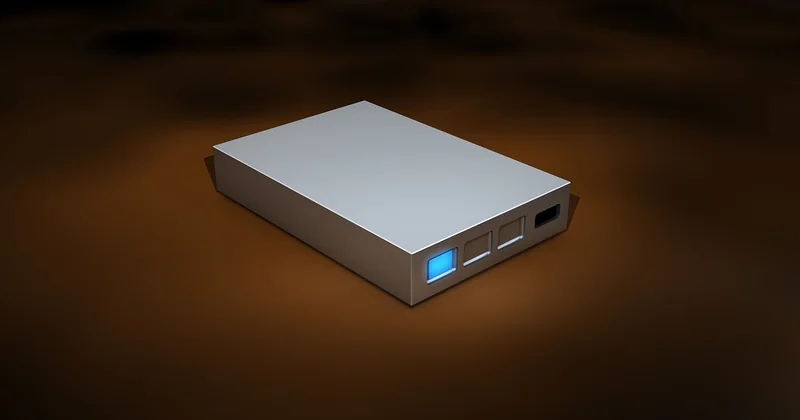
I upgraded my own machine two years ago and the boot time went from about two and a half minutes to under twenty seconds. Same processor. Same RAM. One component swapped.
How to check which drive you actually have
Open Task Manager, go to the Performance tab, click Disk. It will say "HDD" or "SSD" right there. That's it.
Cloning software lets you move your existing Windows installation to the new drive without reinstalling. Most SSD manufacturers bundle a tool for exactly this. If your machine is more than six or seven years old, check whether it supports NVMe before buying, because older laptops often only accept SATA drives.
The numbers that matter
- Free disk space below 10-15%: Windows handles temp files and updates badly.
- RAM below 8 GB in 2026 with a modern browser: you will swap constantly.
- Boot time over 90 seconds on an SSD: something is loading at startup that shouldn't be.
Free up space the right way
Everyone tells you to delete temporary files. Fair enough, but do it with the built-in tool instead of downloading a third-party utility that wants to install a browser toolbar.
Storage Sense and Disk Cleanup
Go to Settings → System → Storage. Turn on Storage Sense. It automatically removes temp files and empties the Recycle Bin on a schedule you choose. This one toggle has saved me more space than every cleaning tool combined.
For a deeper pass, search for "Disk Cleanup" in the Start menu, click "Clean up system files," and look at the list. On a machine that's been running for years, the Windows Update leftovers alone can be 15 GB or more. Delete them. They're old installer packages you'll never need again.
What you should not do: run a registry cleaner. I've seen those break working installations more than once, and the performance gain is somewhere between negligible and imaginary.
What to uninstall
Settings → Apps → Installed apps. Sort by size. Then ask yourself honestly: did I use this in the last year?
Two categories are worth targeting. Toolbars and "helper" apps that arrived bundled with something else. And duplicate tools, like three different PDF readers or four photo viewers. Each one that registers a background service is another thing eating your RAM at idle.
Startup and background apps: the silent tax
Here's the thing nobody tells you. When Windows boots, every startup app competes for the same disk queue. On a slow drive, ten startup apps don't add ten seconds. They multiply.
Task Manager → Startup apps tab. Sort by "Startup impact." Anything marked High that you don't actively need within the first five minutes of using your computer should be disabled. Disabling doesn't uninstall it. You can always turn it back on. I keep exactly three startup items: the audio driver, my backup tool, and nothing else.
The same logic applies to background apps. Go to Settings → Privacy & security → Background apps and switch off everything you don't need pushing notifications or syncing content. On one laptop I worked on, this alone dropped idle memory usage by roughly 1.2 GB.
What about the "speed up Windows with one command" trick?
You've probably seen the command-line tip that disables various Windows services in a single line. My honest take: it can help slightly on very old hardware, but it can also break things you rely on, like printing or Bluetooth, and if you don't understand what each service does, you're gambling. I tried it on a spare machine once. The printer stopped working and I spent an evening figuring out why. Measure first, then change one thing at a time.
Updates, drivers, and the maintenance you actually need
Windows Update gets a bad reputation because it runs at inconvenient times and eats your disk for twenty minutes. But an unpatched machine accumulates background processes that misbehave, and outdated chipset or graphics drivers are a genuine cause of stutter.
Check Settings → Windows Update once a week. Let it finish. Then check your graphics driver through the manufacturer's own tool, not a random driver updater site. Those sites install more problems than they solve.
For hardware health, two built-in checks are worth running once a year:
- Windows Memory Diagnostic: type "mdsched" in the Start menu and restart. It tests your RAM for faults that cause freezes and random slowdowns.
- Disk health: open Command Prompt and run wmic diskdrive get status. If it doesn't say "OK," back up your data today.
Heat: the cause nobody checks
A laptop that feels slow after twenty minutes of use, then fine again after it cools, is throttling. Modern CPUs deliberately reduce their clock speed when they get too hot, and dust is usually the reason. If the fan sounds like a hair dryer, it's clogged.
Compressed air, a steady hand, and ten minutes of patience can restore a machine's performance more than any software tweak. On a four-year-old laptop I cleaned last spring, the CPU went from throttling at 800 MHz under load to holding a steady 2.4 GHz. That's a threefold difference, achieved with a can of air.
Which fix gives you the most for your effort
| Fix | Typical effort | Expected gain | When it's worth it |
|---|---|---|---|
| SSD upgrade | 1-2 hours, modest cost | Very large | Any machine still on a mechanical drive |
| Disable startup apps | 5 minutes | Moderate | Every machine, always worth checking |
| Free up disk space | 15 minutes | Moderate | When free space is under 15% |
| RAM upgrade | 20 minutes, depends on model | Large | Under 8 GB with heavy multitasking |
| Clean the fans | 15-30 minutes | Large if overheating | Laptop that slows down under load |
| Registry cleaners | Varies | Negligible to negative | Never, in my experience |
When to stop fixing and start replacing
There's a point where the fixes stop making sense. If your processor predates 2016, if the machine has 4 GB of RAM soldered to the board, if replacing the drive requires dismantling the entire chassis, you're spending hours to reach "tolerable."
I've had to tell clients this more than once, and it's never a comfortable conversation. But a modest modern laptop with an SSD will outperform a heavily optimized ten-year-old machine on every task that matters, and it will do it without you thinking about it.
Which brings me to the uncomfortable part. Half the "slow computer" problems I've fixed weren't performance problems at all. They were expectation problems. A machine that boots in twenty seconds and opens documents instantly is working correctly, even if it hesitates for half a second when you click something. Chasing that last half second is how people end up installing the very tools that slow everything down.
So measure first. Fix the one thing that's actually broken. Then stop.