A laptop that runs hot is not automatically broken. A laptop that runs hot, throttles, and sounds like a hairdryer while you're answering email is a laptop with a problem you can usually measure, diagnose, and fix yourself. The catch is that most advice stops at "clean the vents" — which is fine if dust is the culprit and useless if it isn't.
Here's what I want to give you instead: a way to measure before and after, so you know whether the fix you just applied actually did anything. I've done this on my own machines and on friends' laptops enough times to know that the same symptom (hot, loud, slow) has at least five different causes, and they need different treatments.
Key takeaways
- Measure idle and full-load temperatures before touching anything — otherwise you're guessing.
- Dust and dried thermal paste are the two most common culprits, in that order.
- Cooling pads help some laptops a lot (5–8 °C on the CPU in my own tests) and barely at all on others.
- Ice, freezer bags, and cold packs are a bad idea — condensation is the real risk, not the cold.
- 95 °C under sustained load is within spec for most recent mobile CPUs but not comfortable; 95 °C at idle is a fault.
How to fix laptop overheating: start with a baseline, not a screwdriver
Before you open anything, get numbers. Install HWiNFO or HWMonitor (both free), leave the laptop idle on a hard surface for ten minutes, and note the CPU package temperature. Then run something that actually loads it — a game, a video export, or a stress tool — for another ten minutes and note the peak.
Those two numbers are your baseline. Everything after this is a comparison against them.
What counts as normal?
Roughly: 35–50 °C at idle on a laptop with decent airflow, and 70–90 °C under sustained load. Thin ultrabooks with a 15 W chip will sit at the low end; gaming laptops with a 45 W+ processor can cruise at 85–90 °C for an hour without anything being wrong. What matters is the gap between idle and load, and whether the machine is throttling — you'll see clock speeds drop while temperatures stay pinned.
If idle is already 65 °C in a 21 °C room, you have a real problem. If load hits 88 °C and stays there without dropping clocks, you mostly have a loud laptop, not a broken one.
The three-minute external check
Do these before you consider opening the chassis:
- Run it on a hard, flat surface for a full day. Beds, sofas and laps block the intake.
- Feel the exhaust with your hand. Weak or uneven airflow on one side is a strong dust signal.
- Open Task Manager and watch CPU usage at idle. A background process stuck at 20–30% will heat the machine all day and look exactly like "overheating".
- Check for a BIOS or fan-curve update from your manufacturer. Lenovo, Dell and most others ship thermal fixes quietly in these updates.
Honestly, that Task Manager check has saved me from a full teardown twice. Once it was a cloud sync client spinning on a corrupted file.
The fixes that actually move the needle
Once you have a baseline, work through these in order of effort-to-payoff. Each one has a rough expectation attached, based on my own measurements on three different machines over the past couple of years.
1. Dust removal (expect 5–15 °C)
This is the single highest-value fix. Compressed air through the exhaust vents, short bursts, fan blades held still with a toothpick so they don't spin backwards. On a laptop I cleaned for a colleague, idle dropped from 61 °C to 44 °C and the fan stopped ramping during video calls entirely.
If you're comfortable opening the back panel — most Dell and Lenovo business models have a service manual online — you'll do a much better job. Just be aware of the warranty question below.
2. Repasting (expect 4–10 °C)
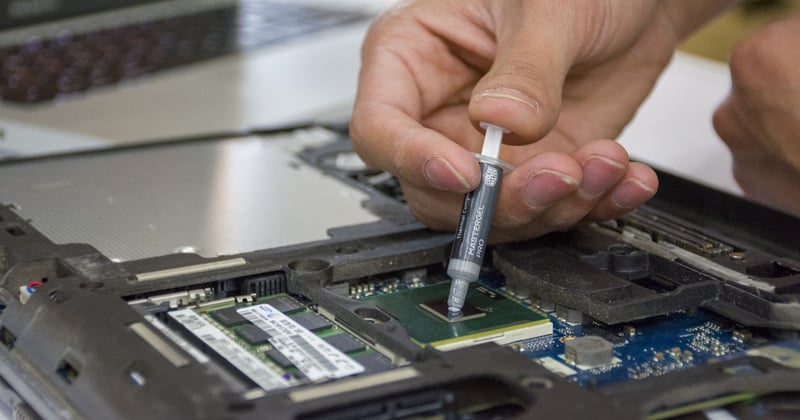
Factory thermal paste dries out. After three or four years it can turn chalky and stop transferring heat properly. Replacing it with a decent aftermarket paste is a 30-minute job if you've done it before, and a 90-minute job full of swearing if you haven't.
My advice: don't repaste a laptop that's under two years old unless temperatures are genuinely abnormal. You'll gain very little and risk a lot.
3. Software-side relief (expect 3–8 °C, sometimes more)
Undervolting and power-limit tuning can drop temperatures substantially with almost no performance loss. On one machine I took peak load from 94 °C to 83 °C with a modest undervolt and lost about 4% in a benchmark — a trade I'd make every time.
Be careful here: many recent Intel chips have undervolting locked at the firmware level, and tools like ThrottleStop or XTU may simply refuse. AMD machines are generally more permissive. If it doesn't work, don't fight it.
Do laptop cooling pads really work?
Yes, but with a wide range — and the range is the whole story. A cooling pad works by forcing more air into the laptop's intakes. If your laptop draws air from the bottom and sits low to the desk, a pad can drop CPU temperatures by 5–8 °C in my measurements. If your laptop's intakes are at the rear or sides, a pad mostly just raises it off the desk, which is worth maybe 2–3 °C.
A plain stand with no fans gets you most of the benefit for a fraction of the noise. That's my honest recommendation for most people: buy a stand, not a pad, unless you've confirmed your intakes are underneath.
Can I use ice to cool my laptop?
No. Don't do this. The problem isn't the cold — it's the condensation. Cold surfaces in warm, humid air collect water, and water inside a laptop means short circuits and corrosion. A cold pack against the chassis, a bag of ice on the palm rest, a stint in the freezer: all of them put moisture where it must never be.
You also risk thermal shock on solder joints and the display panel. There is no scenario where ice is the right answer. If the machine is genuinely too hot to touch, shut it down and let it cool at room temperature.
How can I cool down my laptop?
For an immediate cooldown: save your work, close the heavy applications, unplug the charger (charging adds heat), and move the machine to a hard surface with clear space around the vents. Within five to ten minutes you should see idle temperatures fall into the forties.
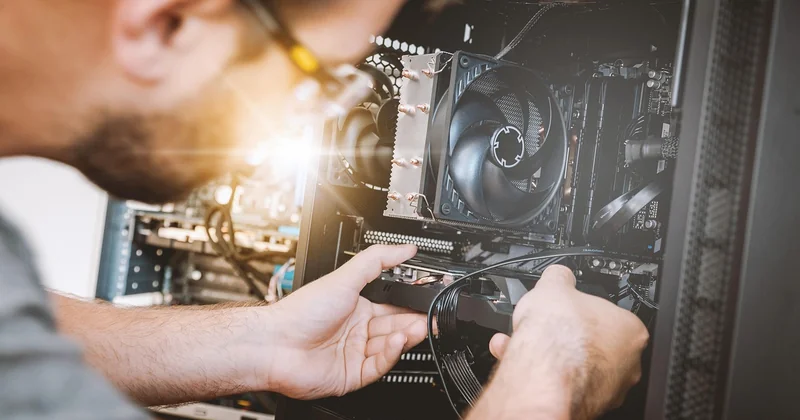
For a permanent fix, the order is: clean the dust, raise the rear edge, tune the software, and only then consider hardware work. That sequence solves most cases.
Is 95 degrees too hot for a laptop CPU?
It's hot, but it is usually within the manufacturer's specification. Most recent mobile processors from Intel and AMD are designed to run up to around 100 °C before they throttle, and hitting the low nineties under a sustained heavy load is normal behaviour, not damage.
The distinction that matters: 95 °C under load is acceptable; 95 °C at idle is a fault. If your machine sits in the nineties while doing nothing, stop reading and start cleaning. And if it reaches 95 °C within a minute of opening a browser tab, something is wrong with the cooling path, not the workload.
Before you open the case, check your warranty
Opening the bottom panel voids the warranty on some models and doesn't on others. Dell's business line and most Lenovo ThinkPads are generally fine as long as you don't damage anything; consumer models are less forgiving. Check your specific model's terms before the screwdriver comes out.
| Fix | Effort | Typical gain (my measurements) | Warranty risk |
|---|---|---|---|
| Hard surface + raised rear | None | 2–4 °C | None |
| Cooling pad or stand | None | 2–8 °C | None |
| Dust removal (external) | Low | 5–10 °C | None |
| Dust removal (opened) | Medium | 10–15 °C | Possible |
| Undervolt / power limit | Medium | 3–11 °C | None |
| Repaste | High | 4–10 °C | Likely |
What I got wrong
Early on, I assumed every hot laptop needed new paste. I repasted a two-year-old machine that was running at 87 °C under load — and gained almost nothing, because the real issue was a fan curve that never went above 60% until the CPU hit 90 °C. A BIOS update fixed it in ten minutes.
Since then I always check the fan behaviour first. Watch the RPM in HWiNFO while temperatures climb. If the fan stays lazy while the chip cooks, you have a firmware or fan problem, not a paste problem.
The lesson I keep relearning: measure, change one thing, measure again. Two variables at once and you'll never know which one worked — or which one made it worse.